Connecting to client Wi-Fi network
Configure the router to connect to an existing wifi network to reach the internet.
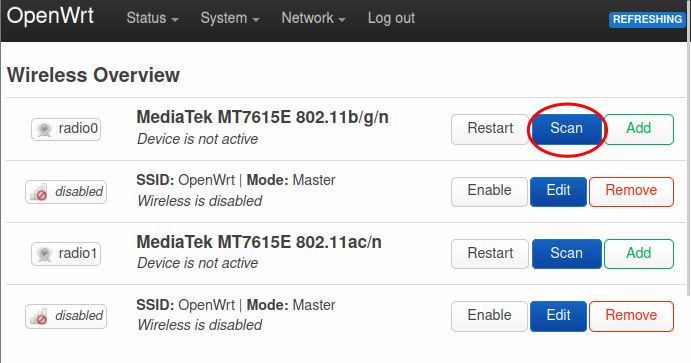
Step 1: Go to Wireless Overview page
Go to Network > Wireless page in the router
admin interface.
Click on the Scan button of radio0. The radio0 is the 2.4 GHz network and the radio1 is the 5 GHz network. Use radio1 instead of radio0 if you would like to connect to a 5 GHznetwork.
Step 2: Wireles Scan
You'll see the Wireless Scan dialog. Select the network that you want to join.
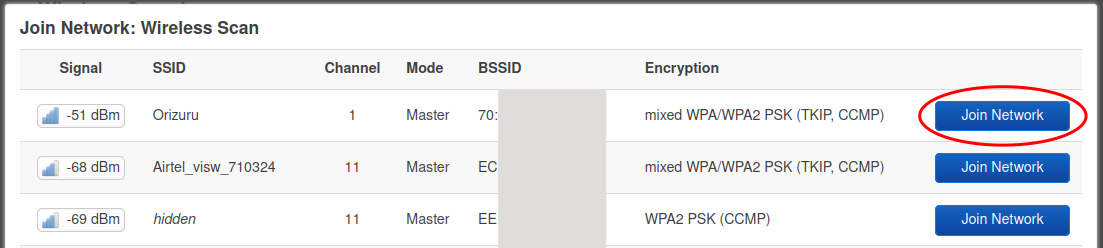
Step 3: Join Network
You'll be prompted with the Joining Network dialog.
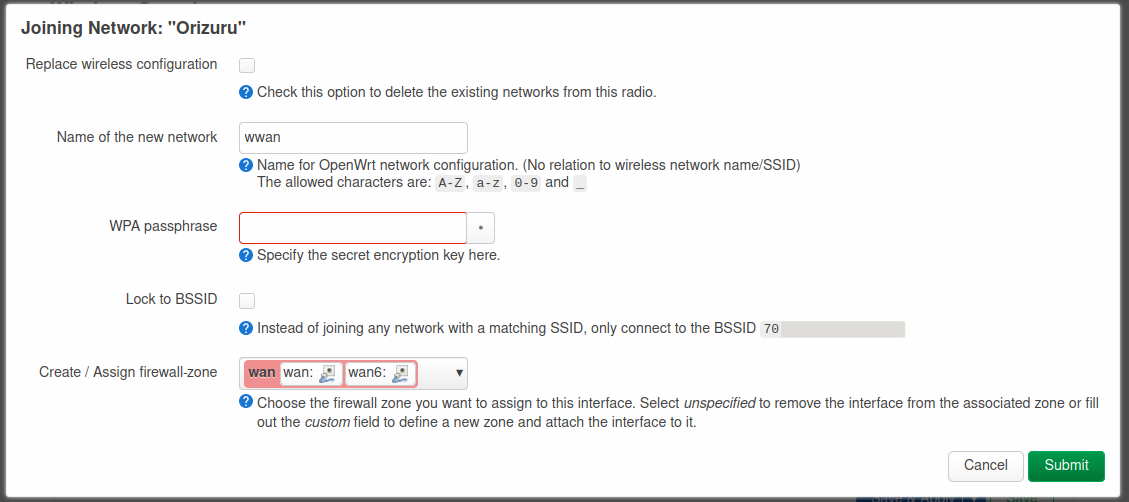
Please enter the wifi password in the WPA passphase field and Submit.
Click Save on the next dialog.
Step 4: Save & Apply
You'll be back to the Wireless Overview page. Click on Save and Apply at the bottom of the page.
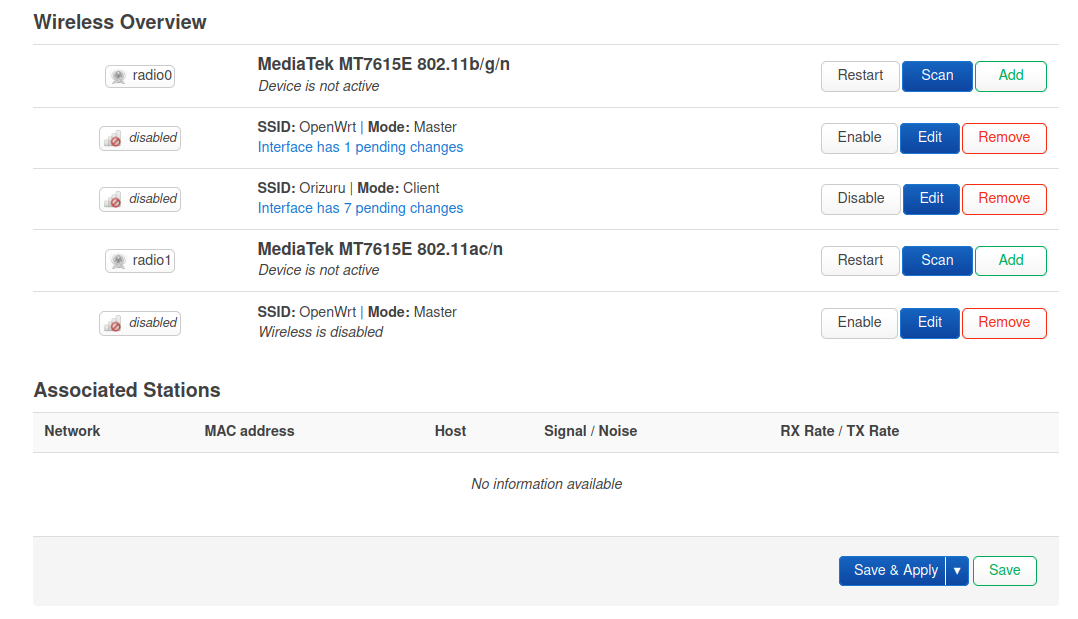
The router will apply the changes and restart. And you'll see an entry in the Associated Stations section.
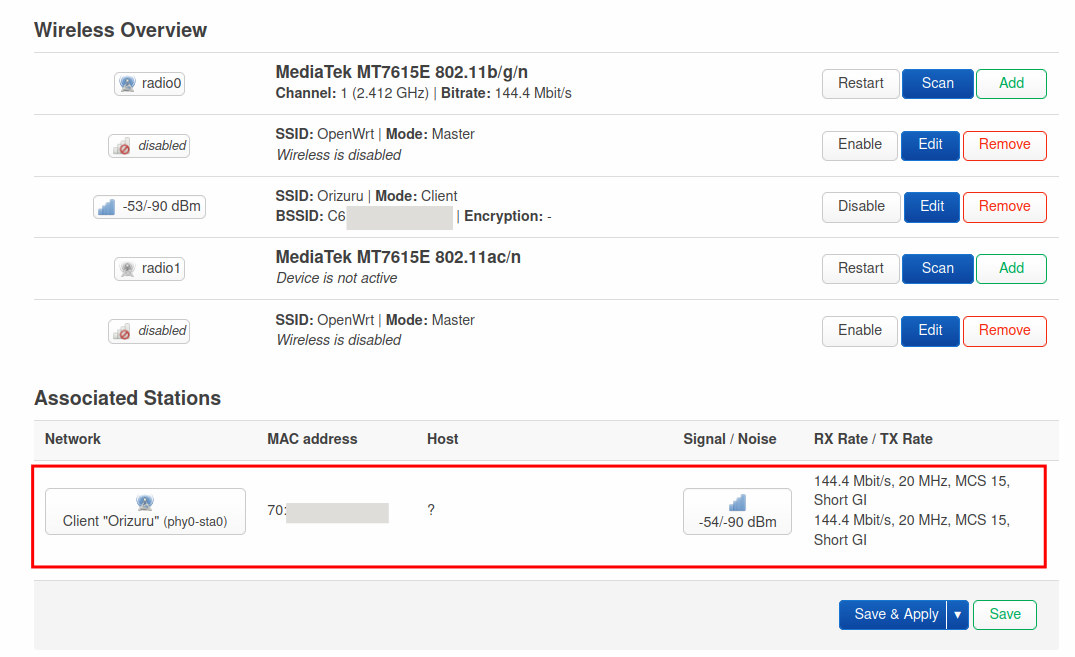
Step 5: Verify
You should be able to connect to internet from your laptop. Verify by opening any website from your browser or by running ping google.com from terminal.
The router is connected to internet and can be used with an ethernet connection, but the wifi access point is not enabled yet. We'll configure that in the next step.